> For the complete documentation index, see [llms.txt](https://docs.icraft.design/llms.txt). Markdown versions of documentation pages are available by appending `.md` to page URLs; this page is available as [Markdown](https://docs.icraft.design/editor-features/resource-panel/asset-library/3d-asset-library.md).
# 3D Asset Library
The **3D Asset Library** in iCraft is a model marketplace and resource hub managed by the platform and contributed to by the user community.
Users can browse, preview, search, and place models directly into the canvas for editing and presentation. Paid models are purchased using platform points, while many assets are also available for 0 credits (free).
The library currently contains thousands of models across common scenes and categories, covering needs ranging from presentation-level visualizations to engineering-grade assets.
## Core Features of the 3D Asset Library
* **Large Ready-to-Use Collection**\
Thousands of models are categorized by industry and scenario, greatly reducing modeling time and enabling rapid visualization and iteration.
* **Instant Placement**\
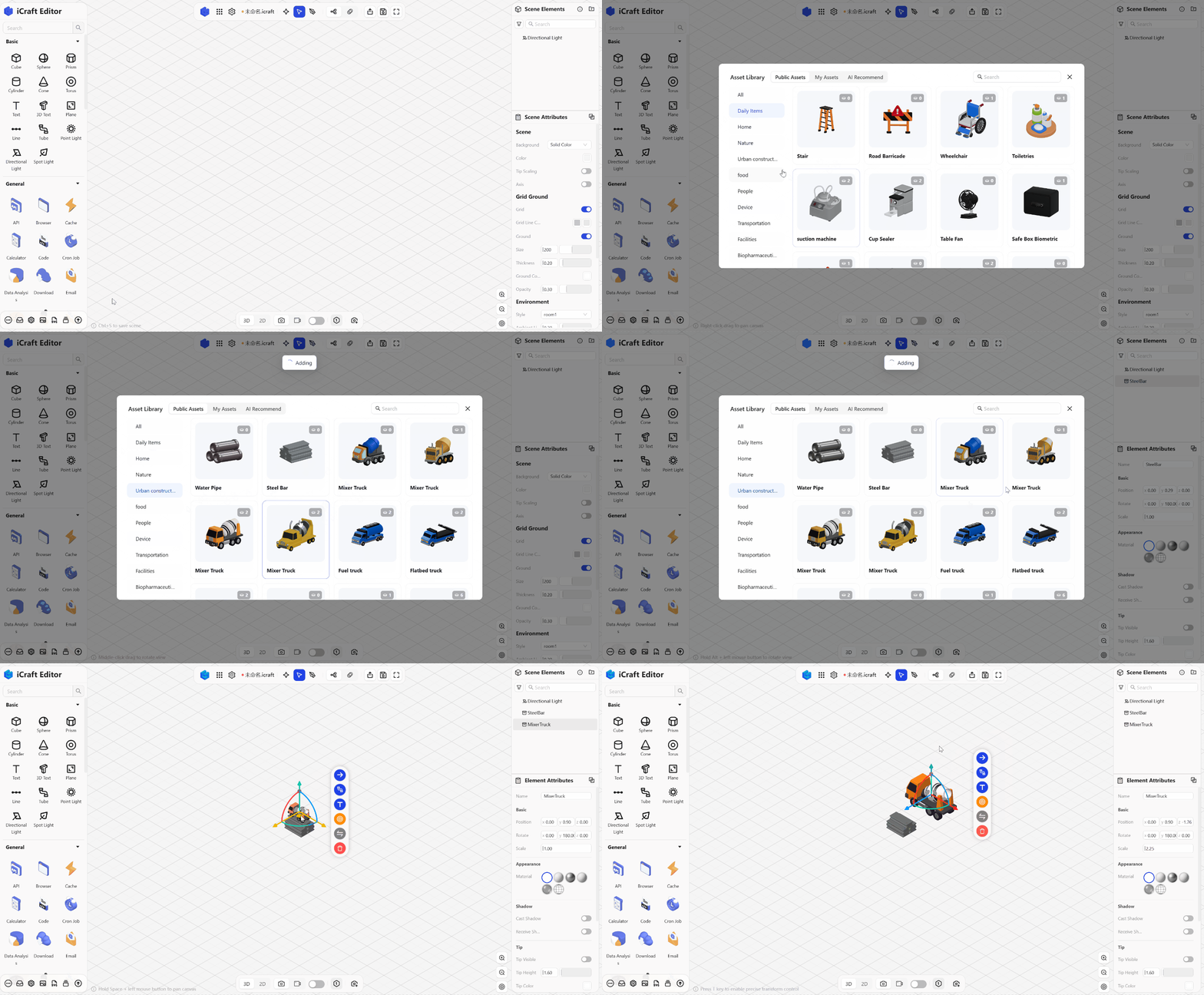
After previewing a model in the library, you can add it to the canvas with a single click, where it becomes immediately available for editing.
* **Credit-Based Marketplace**\
Assets are purchased using platform credits, making transactions simple and convenient.\
Many assets are also available for 0 credits, allowing free usage.
* **Multi-Level Preview**\
Each asset provides thumbnail previews, rendered views, and an online 3D preview.\
The 3D preview allows you to rotate, zoom, and inspect materials, helping you determine whether the asset fits your needs before obtaining it.
* **Community & Rating System**\
User ratings, download counts, and favorites act as trust indicators, helping users discover high-quality assets.
* **Asset Governance**\
The platform supports official review, reporting mechanisms, and version management to ensure asset quality and compliance.
* **Expandable Personal Library**\
Purchased assets can be added to your personal asset collection, making them easy to reuse in future projects.
***
## How to Use the 3D Asset Library?
#### Open the Asset Library
* **Method 1**\
Click the **“Asset Library”** icon at the bottom of the left resource panel in the editor to open the asset library window.
* **Method 2**\
At the top of the left resource panel, select the **“Public”** tab to quickly browse assets from the library.
#### Search and Filter
Use the **search bar** to enter keywords such as **`sofa`, `tree`, or `factory`**, or browse assets through the category filters.
#### Obtain Assets
Click the asset you want to obtain. The system will display an **acquisition prompt**, where the asset can be obtained using **platform points**. After obtaining the asset, it will appear in your **Purchased Assets** collection.\
You can access all obtained assets anytime in **"My Assets → My Acquisitions".** If you do not have enough points, the interface will provide an upgrade entry for the PRO membership. After upgrading, the system will grant bonus points. More details can be found in [**Purchasing**](/purchasing.md).\
Assets labeled **“0 Credits”** do not require confirmation and can be added directly to the canvas for free.
#### Place a Model onto the Canvas
* You can add models to your scene in two ways:
* Drag the model from the asset list or your personal assets directly onto the canvas
* Click the model, and it will automatically be added to the canvas
* After placement, the model becomes a standard scene element. You can adjust its position, scale, materials, and other properties in the element properties panel.
---
# Agent Instructions
This documentation is published with GitBook. GitBook is the documentation platform designed so that both humans and AI agents can read, navigate, and reason over technical content effectively. Learn more at gitbook.com.
## Querying This Documentation
If you need additional information that is not directly available in this page, you can query the documentation dynamically by asking a question.
Perform an HTTP GET request on the current page URL with the `ask` query parameter, and the optional `goal` query parameter:
```
GET https://docs.icraft.design/editor-features/resource-panel/asset-library/3d-asset-library.md?ask=&goal=
```
`ask` is the immediate question: it should be specific, self-contained, and written in natural language.
`goal` is optional and describes the broader end goal you are ultimately trying to accomplish on behalf of the user. GitBook uses it to tailor the answer towards what is most useful for that goal.
The response will contain a direct answer to the question and relevant excerpts and sources from the documentation.
Use this mechanism when the answer is not explicitly present in the current page, you need clarification or additional context, or you want to retrieve related documentation sections.