> For the complete documentation index, see [llms.txt](https://docs.icraft.design/llms.txt). Markdown versions of documentation pages are available by appending `.md` to page URLs; this page is available as [Markdown](https://docs.icraft.design/editor-features/navigation-bar/file-exporting/exporting-as-webpage.md).
# Exporting as Webpage
iCraft is equipped with powerful **sharing and publishing** features, enabling you to generate a public link with just one click. Others do not need to access the official iCraft website; they can open and interactively view your 3D creations simply through a browser. With this feature, your 3D scene is no longer just a static project within the editor, but an online display webpage with dynamic effects and interactive capabilities.
***
## Publishing Workflow
{% stepper %}
{% step %}
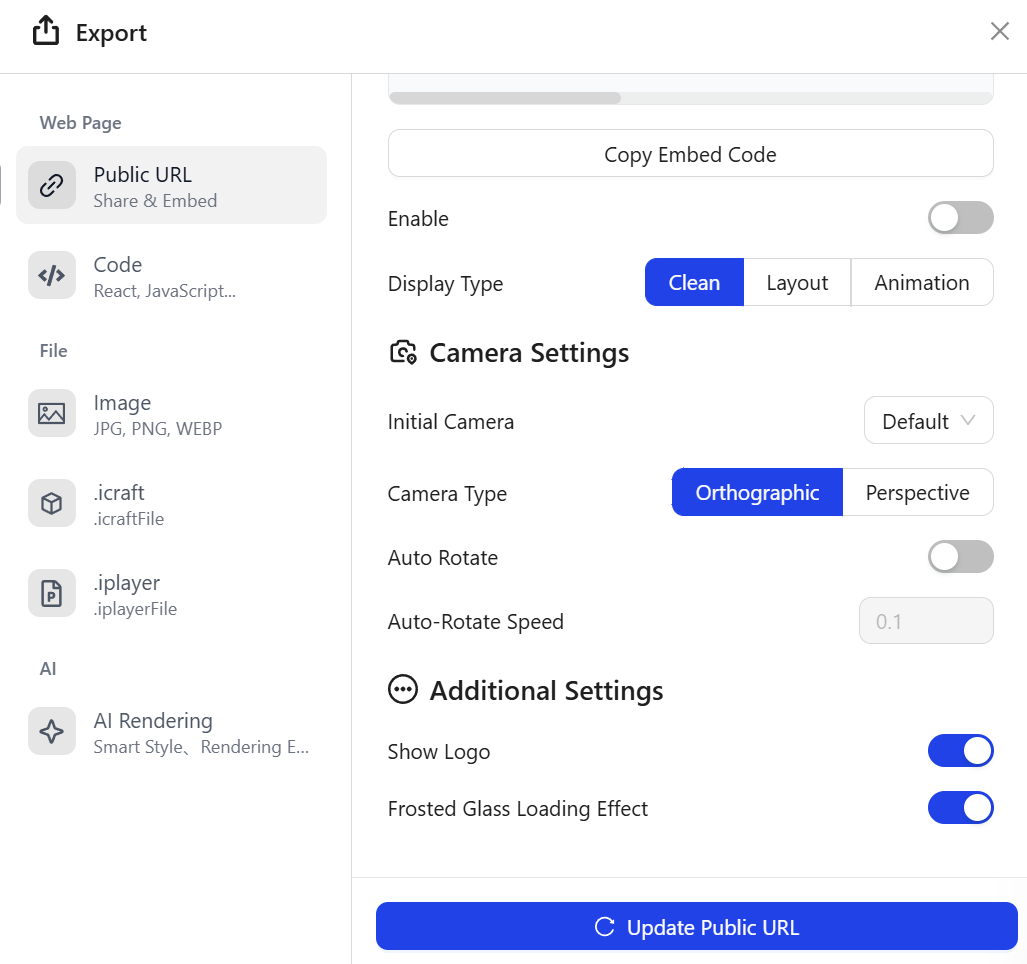
Click the "**Export"** icon in the top navigation bar, and select "**Public URL"** in the pop-up page.
{% endstep %}
{% step %}
Configure parameters to adjust the interactive behavior of the preview page.
{% endstep %}
{% step %}
Click **Update Public URL**, and the pop-up will automatically generate the link and embedded code.
{% endstep %}
{% step %}
Click "**Copy Link**" to open the link on other pages for sharing and browsing.
{% endstep %}
{% step %}
Click "**Copy Embed Code"** to embed the shared scene into other systems or platforms using HTML code. Embedding is a powerful option often used by professional users who want to integrate iCraft scenes into websites, dashboards, or applications.

{% endstep %}
{% endstepper %}
***
## Parameter Configuration Details
* **Enable**: Toggle switch, disabled by default. It defines whether the public sharing link is activated; it is generally recommended to turn it on, otherwise the generated link will be inaccessible.
* **Display Type**: Three types are available: Clean, Layout, and Animation, with Clean set as the default. The features of each type are as follows:
* **Clean**: Only the 3D scene itself is displayed; the page only supports rotation and dragging.
* **Layout**: A camera bar is displayed at the bottom of the page, supporting more perspective switching and auto-rotation functions.
* **Animation**: The page runs in animation playback mode, which takes effect only after an animation scheme is configured for the project.
* **Initial Camera**: The default camera when entering the page. If you have added new camera keyframes in the camera bar, you can select them from the drop-down list.
* **Camera Type**: When the default camera is selected in “**Initial Camera”**, you can choose between Orthographic and Perspective camera for the default type.
* **Auto Rotate**: Toggle switch, disabled by default. If enabled, the scene will rotate automatically after accessing the webpage.
* **Auto Rotate Speed**: Configurable only when **Auto Rotate** is enabled, used to set the scene rotation speed. The default value is 0.1, with an adjustable range of `0.1 ~ 100`.
* **Show Logo**: Toggle switch, enabled by default. When turned on, the iCraft logo will appear in the top-right corner of the page when accessing the public sharing link.
* **Frosted Glass Loading Effect**: Toggle switch, enabled by default. When turned on, a frosted glass blur transition effect will be displayed during the loading of the public sharing link, enhancing the overall look and premium feel of the page.
---
# Agent Instructions
This documentation is published with GitBook. GitBook is the documentation platform designed so that both humans and AI agents can read, navigate, and reason over technical content effectively. Learn more at gitbook.com.
## Querying This Documentation
If you need additional information that is not directly available in this page, you can query the documentation dynamically by asking a question.
Perform an HTTP GET request on the current page URL with the `ask` query parameter, and the optional `goal` query parameter:
```
GET https://docs.icraft.design/editor-features/navigation-bar/file-exporting/exporting-as-webpage.md?ask=&goal=
```
`ask` is the immediate question: it should be specific, self-contained, and written in natural language.
`goal` is optional and describes the broader end goal you are ultimately trying to accomplish on behalf of the user. GitBook uses it to tailor the answer towards what is most useful for that goal.
The response will contain a direct answer to the question and relevant excerpts and sources from the documentation.
Use this mechanism when the answer is not explicitly present in the current page, you need clarification or additional context, or you want to retrieve related documentation sections.